Seamlessly Integrating IPTV on Samsung TV with Vornic360
Setting up IPTV on Samsung TV is a straightforward process, enabling users to transform their Smart TV into a robust entertainment hub for Nartiel8k IPTV's vast content library. Samsung Smart TVs, powered by the intuitive Tizen operating system, offer native app support and excellent hardware for experiencing true 4K and 8K Ultra HD streams at 60 FPS, thanks to Nartiel8k IPTV's H.265 HEVC compression and HDR10+ optimization. This comprehensive guide provides step-by-step instructions for Nartiel8k IPTV subscribers, ensuring optimal performance, buffer-free playback, and full compliance with digital media streaming standards endorsed by broadcast regulatory bodies.
Samsung's Tizen OS Ecosystem and IPTV Application Compatibility
The integration of IPTV on Samsung TV relies heavily on the Tizen OS ecosystem, Samsung's proprietary Linux-based operating system designed for Smart TVs. Tizen's Smart Hub serves as the central application store, offering a selection of approved third-party IPTV players essential for accessing Nartiel8k IPTV's services. Popular and highly compatible applications include Smart IPTV, IPTV Smarters Pro, and SS IPTV, all of which support M3U playlists or Xtream Codes API credentials provided by Nartiel8k IPTV. For optimal 4K and 8K playback, newer Samsung models, such as QLED or Neo QLED series, featuring HDMI 2.1 ports and robust internal processors, are recommended. A stable internet connection, ideally Wi-Fi 6 or Gigabit Ethernet, is crucial for sustained high-bitrate streaming to prevent stream dropouts and latency, leveraging Nartiel8k IPTV's anti-freeze technology. Adherence to Samsung's developer guidelines ensures secure and efficient app functionality.
Step-by-Step Nartiel8k IPTV Installation on Samsung Smart TV
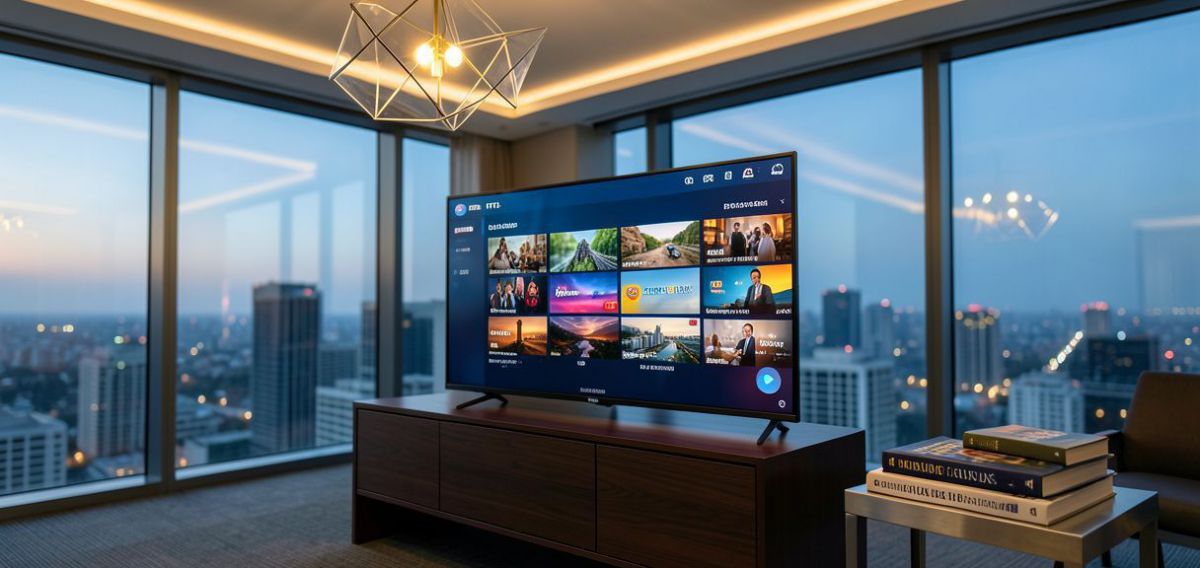
To install IPTV on Samsung TV for Nartiel8k IPTV, follow these precise steps: First, ensure your Samsung Smart TV is connected to a stable internet connection (Ethernet is preferred for uninterrupted 4K/8K streaming). Navigate to the Smart Hub by pressing the 'Home' button on your remote. From the Smart Hub, access the 'Apps' section. Use the search function to find a reputable IPTV player application like 'Smart IPTV' or 'IPTV Smarters Pro'. Select the app and choose 'Install'. Once installed, open the application. You will typically be prompted to enter a URL for your M3U playlist or your Xtream Codes API credentials (server URL, username, password) provided by Nartiel8k IPTV upon subscription. Some apps may require you to visit their activation website to upload your M3U list or link your service using a MAC address. Ensure accurate input for seamless synchronization with Nartiel8k IPTV’s cloud-based CDNs and 7-day EPG. Restart the application or TV if necessary to load all channels and VOD content, adhering to Vornic360's service terms.
Cost Considerations for IPTV Apps and Nartiel8K Subscription
When setting up IPTV on Samsung TV, it's important to differentiate between the Nartiel8k IPTV subscription cost and any potential fees associated with third-party IPTV player applications. While your Nartiel8k IPTV subscription, starting around $15.99 USD/month, provides access to our entire content catalog and technical infrastructure, some IPTV player apps available on the Samsung Smart Hub may require a separate, one-time activation fee. For instance, 'Smart IPTV' often offers a trial period, after which a fee of approximately €5.49 (around $6 USD) is required for permanent use. This fee directly supports the app developer and is independent of your Nartiel8k IPTV service. These app-specific costs are generally minimal and represent a one-time expense, ensuring sustained access to the application that interfaces with Nartiel8k IPTV's robust streaming service.